
Build better audio datasets.
AudioInspector Annotate combines two decades of professional audio analysis with fast, one-click human annotation — audio defects, content notes, any metadata you define. Precise, consistent and ready to use.
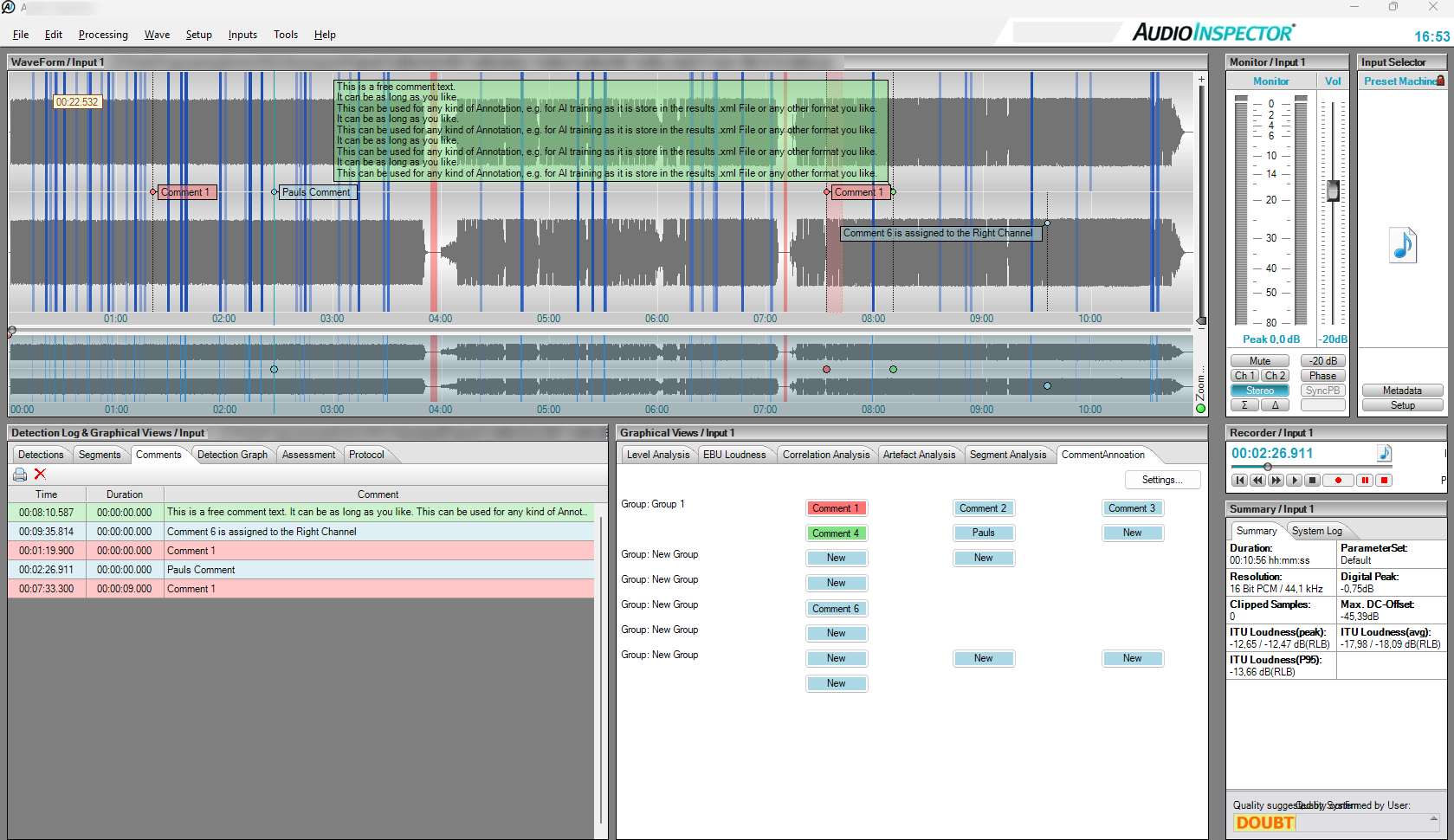
Annotation at the speed of listening
Manual labeling is slow and inconsistent. Annotate keeps you in the flow: listen, click, keep listening.
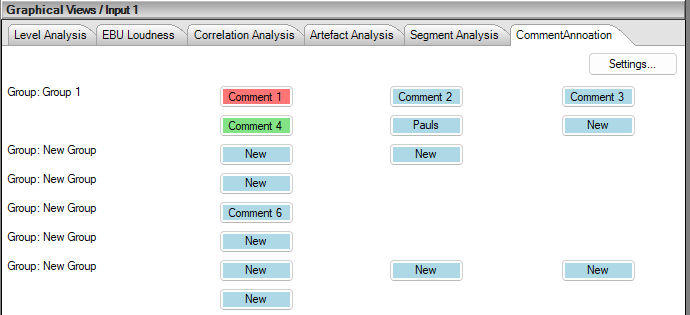
One click, one annotation
Set up your own annotation vocabulary once — quick keys with predefined text, color and tooltip, organised in groups. While the audio plays, a single click places the annotation exactly at the current position, and every text remains fully editable afterwards. No dialog, no typing, no interruption.
Any metadata — not just defects
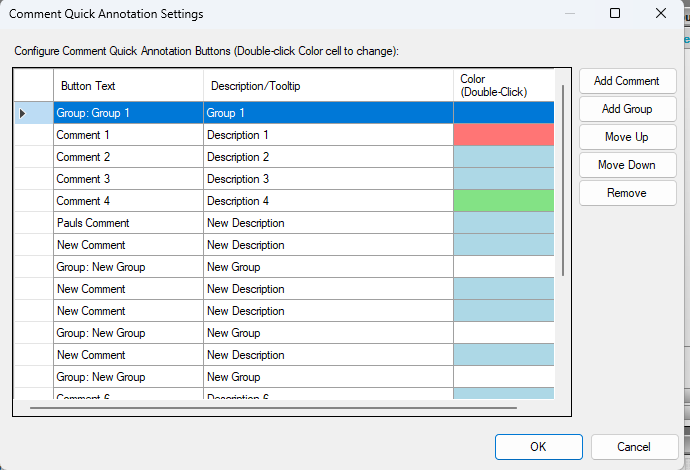
Annotation is fully configurable: label audio defects, but just as easily any content-related metadata — speech and music passages, speakers, languages, topics, editorial notes. Define your own comments and groups in a simple settings table (text, description, color), rearrange or extend them at any time — even mid-session with a Ctrl+click on the key. Your setup is saved and ready on the next start.
Precise down to the millisecond
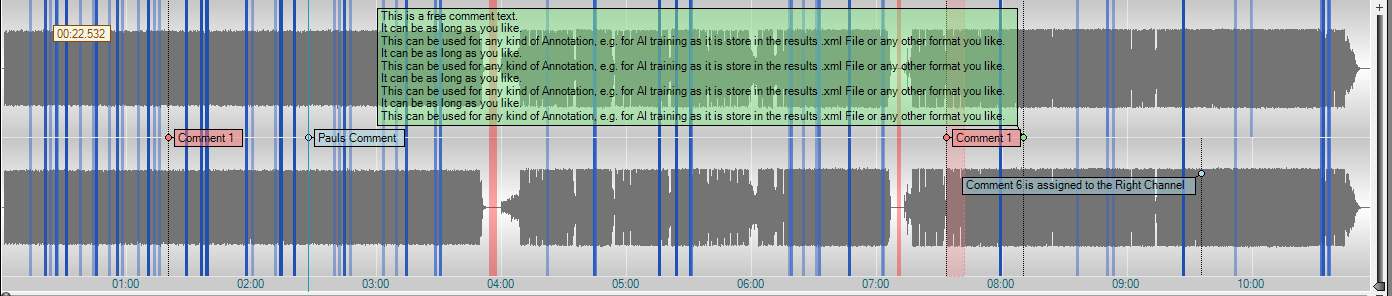
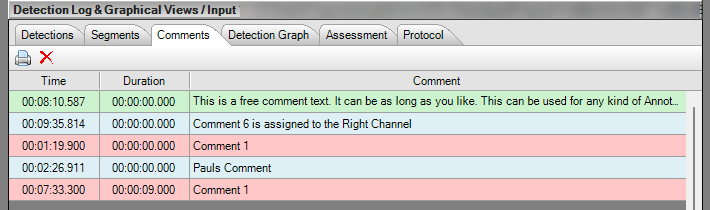
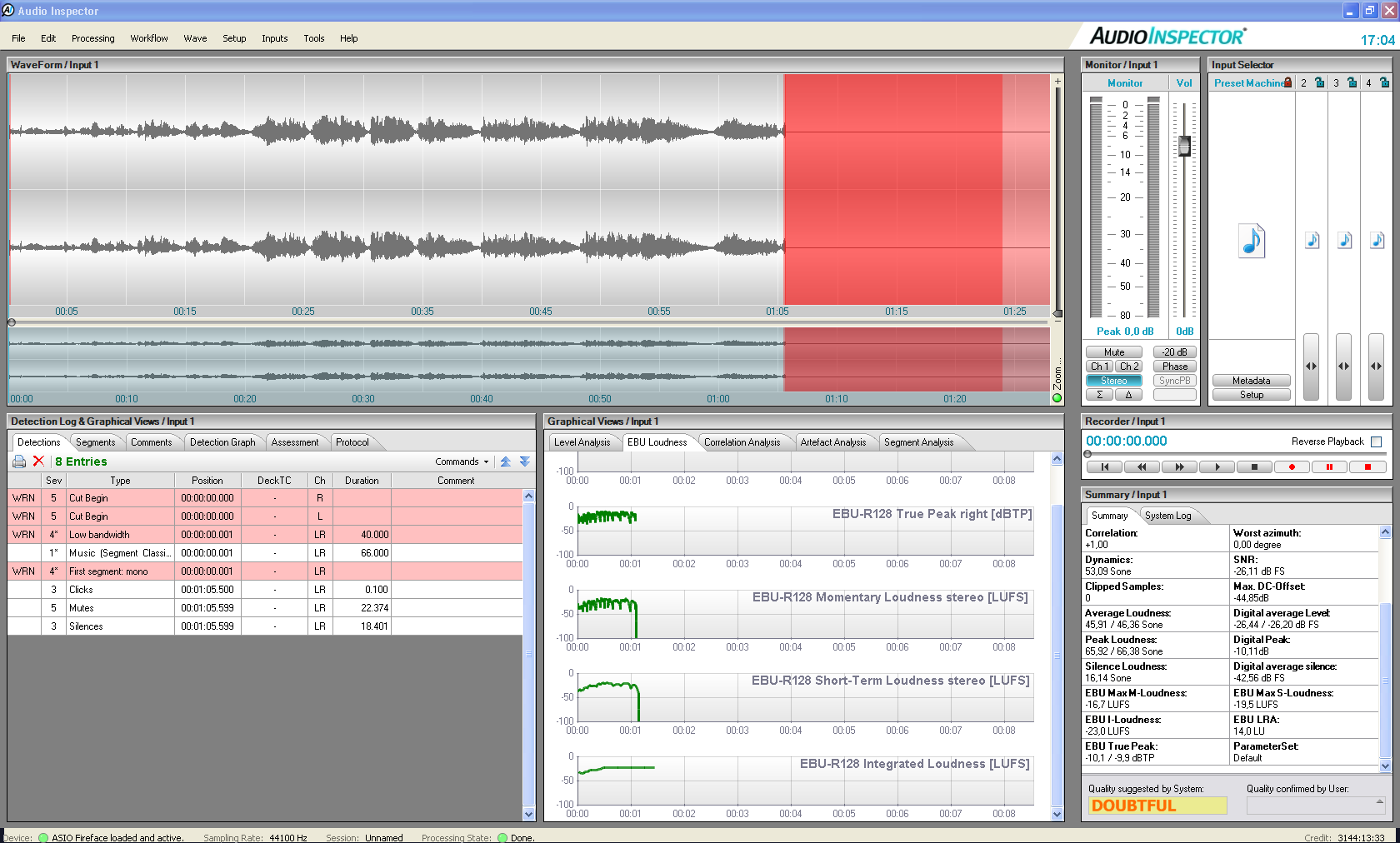
Every annotation carries a start time, an optional duration and the channel it applies to — up to eight channels in multichannel mode. Place and refine annotations directly in the waveform, adjust text, time and range afterwards, and see ranges as colored regions over the audio.
Everything in one log
All annotations appear in a sortable list next to the detections — click any entry to jump straight to that position in the audio. Review, correct, print or export: the complete annotation history of a file stays visible and editable in one place.
Keyboard-first review
Long sessions need fast hands. The complete review workflow is on the keyboard — and every shortcut is freely configurable.
Analysis does the groundwork — you decide
1 · Automatic detections
AudioInspector's proven detection engine flags clicks & pops, dropouts, mutes, cut beginnings and endings, azimuth errors, clipped samples, EBU R128 loudness issues and more — and marks the passages worth a closer listen. You start from findings, not from silence.
2 · Human review
You confirm, refine or discard every finding and add your own annotations. Suggested and confirmed judgements are stored separately, and nothing is deleted silently — the full review history stays in the file.
3 · Data you can use
Annotations and results are stored in open, structured formats (XML alongside your audio, reports as JSON or CSV) — organised in mixed or separate directories, ready for your machine-learning pipeline. Works with interactive sessions as well as the familiar AudioInspector and BatchInspector drop-folder results.
Try AudioInspector Annotate
Interested? Tell us briefly about your use case and we will get back to you with everything you need to start testing. Licensing follows the AudioInspector model — standard license or pay per use.
AudioInspector Annotate runs on Windows 11 & 10.